
The status bar is located at the bottom of the incident screen in the NowForce mobile app and displays the current status of the incident. As the incident progresses, you are expected to update your status so that the dispatch operator, who is monitoring the incident, can track your progress.
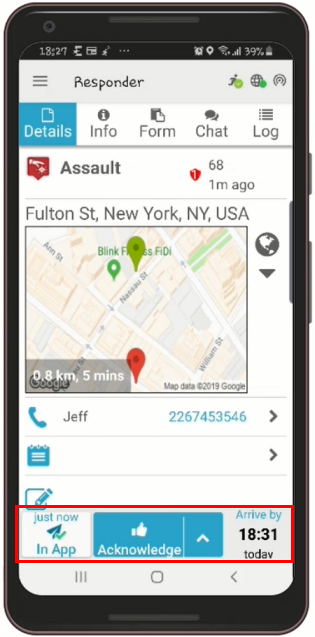
The Arrival Time displayed on the right of the status bar is only shown if the incident has a Service Level Agreement (SLA). It indicates the time you are expected to arrive at the incident and is displayed in the following colors:
- Green: If you are expected to arrive on time.
- Red: If you are not expected to arrive on time.
When you send an On-site status, the Arrival Time changes to the estimated Completion Time. If the Completion Time has passed, the time is displayed in red to indicate that you should complete the incident as soon as possible.
Updating your Current Status
Your current status is displayed in the middle of the status bar, as shown above. You can update your status as the incident progresses by tapping on:
- Your current status to automatically change it to the next status level, or
- The upward-pointing arrow to the right of the current status and selecting the next status from the displayed list, as shown in the following example:
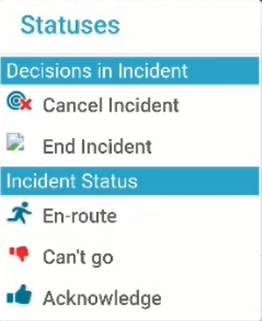
The list above shows the predefined statuses for the Assault incident as displayed in the screenshot above. This list varies depending on the type of incident and the statuses defined by your system administrator.
Status Descriptions
The following list describes the different statuses:
- Unavailable: Informs the dispatch operator and other responders to the incident that you are unable to respond to the incident. This status allows the dispatch operator to replace you with the next most suitable responder.
- Cancel: Informs the dispatch operator and other responders to the incident that you are no longer able to respond to the incident.
- Confirm: (Only visible for incidents considered as multi-task incidents.) This status confirms that you have received the incident and are responding to it.
- En Route: Informs the dispatch operator and other responders to the incident that you are responding to the incident and are en route to the incident location.
- On-site: Informs the dispatch operator and other responders to the incident that you have arrived at the incident location.
- Completed: Informs the dispatch operator and other responders to the incident that you have completed your tasks and are no longer active in the incident.