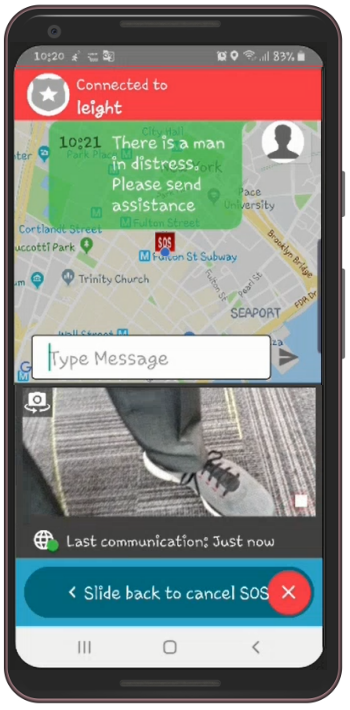
Using SOS
The mobile application contains an SOS function that you can activate in the event of an emergency or if you need immediate assistance from the control room. Activating SOS directly alerts the control center of your current location, and simultaneously calls the emergency number set in the system.
Activating SOS
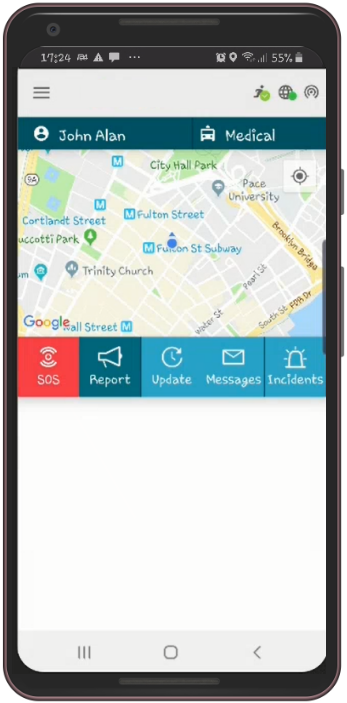
The SOS function can be found on the home screen.
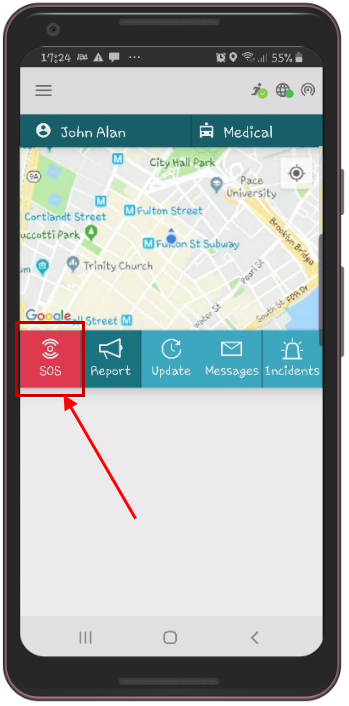
To activate the SOS function:
- Tap SOS on the home screen.
- Slide the red button all the way to the right.
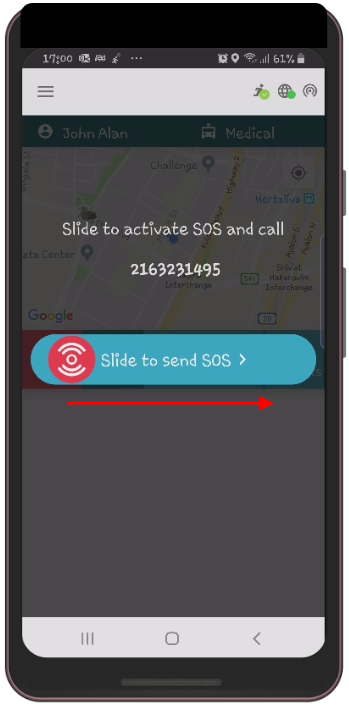
As a precaution to prevent accidental SOS alerts, a countdown timer starts, giving you five seconds to cancel the SOS if it was accidentally activated.
To cancel the SOS activation, tap Cancel below the countdown timer.
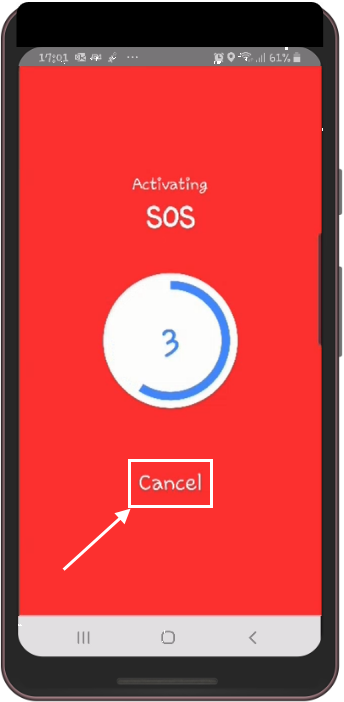
If the SOS activation was intentional, let the timer count down completely. When the timer expires and the SOS is successfully sent, your device enters SOS mode, and the following events occur:
- The SOS alert is sent to the control room.
- Your mobile phone automatically opens and calls the emergency number set by the system administrator.
- If emergency contacts have been assigned to you, they will also be contacted.
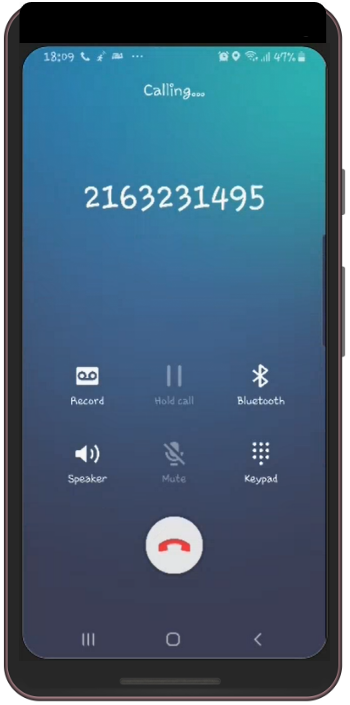
After the automatic phone call, the Reporter app appears.
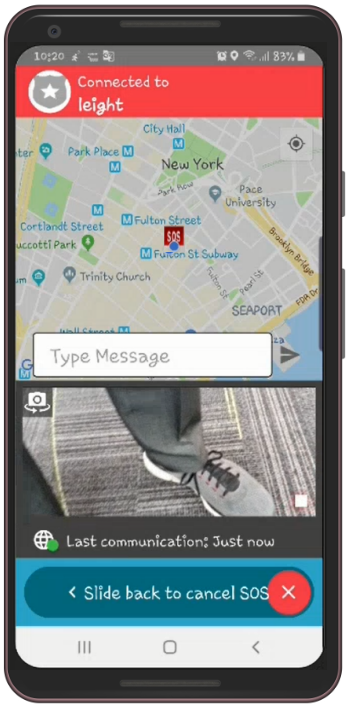
SOS Activation and Video Streaming
The Responder app can share a live video stream from your device when an SOS activation occurs, depending on the configuration of the Reporter app set by your organization’s system administrator. If your organization allows this feature, there are two methods for streaming video:
- Automatic video streaming
- Manual video streaming
Automatic Video Streaming
If your Reporter app is configured for automatic video streaming:
- The camera will open.
- The video stream is sent to the control room.
- The video preview opens in the Reporter app.
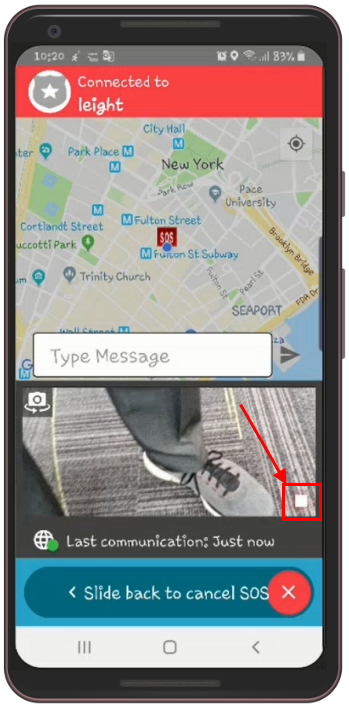
To stop the video stream, tap the Stop button in the bottom right corner of the video streaming area.
A message appears stating that live video streaming has been disabled.
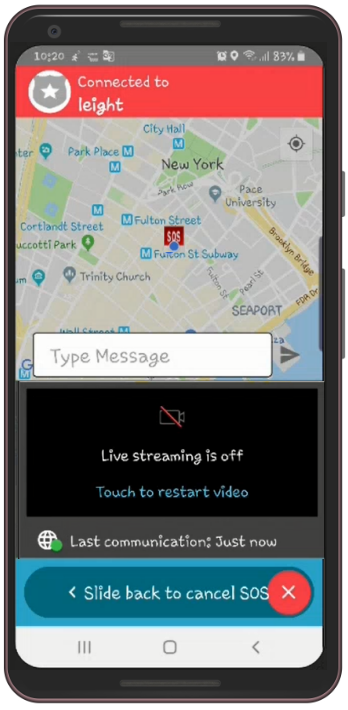
Manual Video Streaming
If your Reporter app is not configured for automatic video streaming, tap the Video Stream button to open your mobile device’s camera and stream live video to the control room.
To deactivate/abort an SOS activation:
- Slide the red SOS button completely to the left.
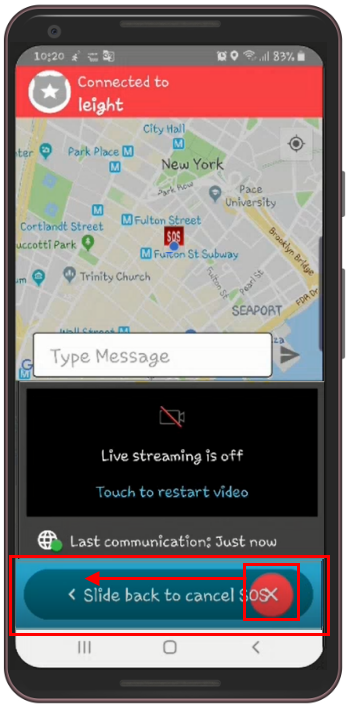
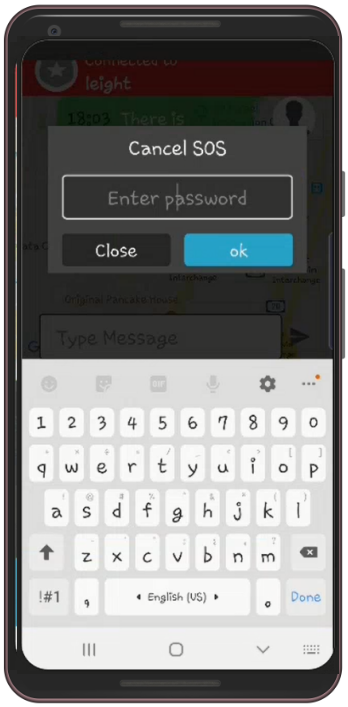
As a security measure to ensure that only the user who sent the SOS activation can cancel it, you must confirm your request to deactivate the SOS by entering your user password.
When prompted, enter your password and tap ok.
The SOS activation is canceled, and the home screen appears.
Using the SOS Chat Function
When your mobile device is in SOS mode, you can chat with the control room in real time.
When you activate the SOS function, a chat messaging panel opens on the screen. You can communicate with a control room operator via the chat function.
To send a message, type the message and tap Send.
Below is an example of a message sent to the control room operator via the chat function.