
Overview
Reporting new incidents via mobile devices is available for mobile users with the Reporter function. These incidents can then be managed by the Dispatch operator and assigned to responders in the field.
When reporting an incident, you must provide the following information:
- Incident location (defaults to your current location)
- Incident type (select from the list)
- Incident details and form (if defined by the administrator)
Reporters with special permissions can also:
- Select location: You can adjust the incident location to report incidents that are not at your current location.
- Self-dispatch: (For users with a Responder license or higher) You can inform the dispatch operator that you are at the incident scene and assign yourself to the incident.
- Auto-dispatch: (Supervisors only) You can dispatch other responders to the incident.
Reporting a New Incident
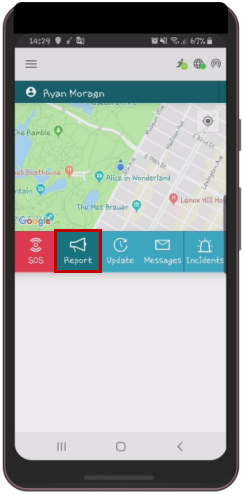
- Tap Report in the mobile app or tap Report from the main menu. For more information about using the main menu, see Using Responder.
- The Report screen appears with the list of Incident Types. Select the desired Incident Type from the list.
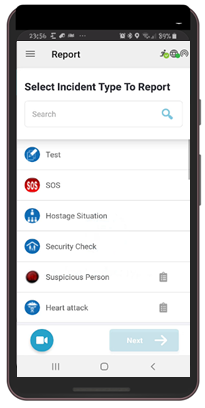
If you don’t see the desired incident type, scroll down or use the Search bar to find the required incident type in the list.
- Tap Next to select a location for the incident. Your current location is selected by default.
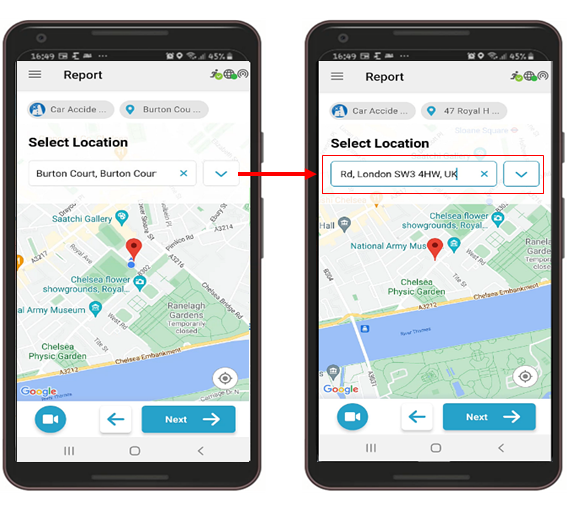
If you have the appropriate permissions, you can change the incident location.
- Tap the Location field and type the new address. As you type, addresses matching the characters you enter will appear automatically.
- You can also drag the location pointer on the map to a new location.
When it appears, tap the new incident location address. Use the dropdown arrow to add more details such as entrance and floor to the location.
- (Optional) If you want to send live video footage of the incident to the dispatch operator, tap the Video Recorder icon. This icon appears on all reporting screens.
The Video Recorder icon is only available if configured for your organization.
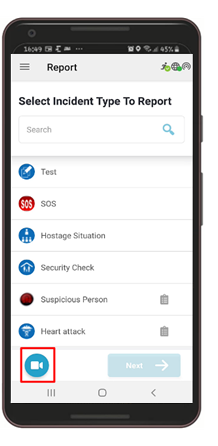
The live video stream begins streaming to the dispatch operator. Tap the
- Tap Next.
- If the selected incident type has an assigned form, you can complete the incident form before reporting the incident to the dispatch operator.
If the incident form has required fields marked with a blue star, you cannot complete the report without filling in these fields.
The more details you can provide, the better the dispatch operator and responder can understand the incident.
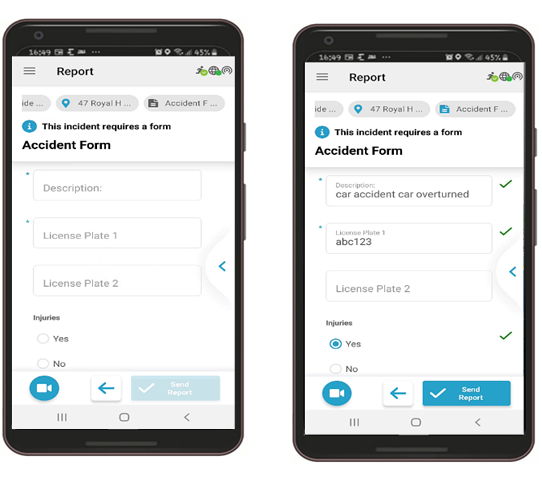
When you have completed all required information about the incident, including location, type, and details, you can report the new incident.
- Tap Submit Incident.
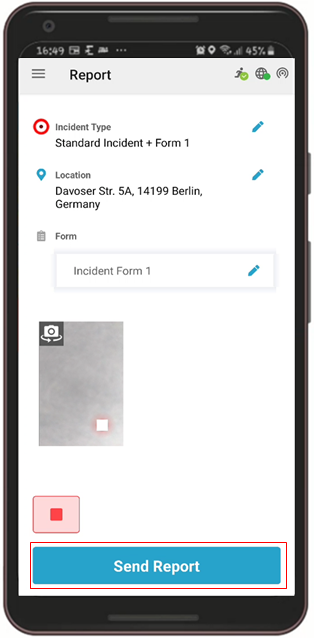
Select one of the following options:
- Report Incident: Sends the incident report to the dispatcher without dispatching specific responders. The dispatch operator receives the incident message and manages the incident.
- Self-dispatch: Sends the incident report to the dispatcher and informs the dispatch operator that you are assigned to the incident. This permission is only available for users with a Responder license (or higher).
- Auto-dispatch: Activates the dispatch protocols for the selected incident type. Resources included in the dispatch protocol are sent to the incident. The dispatch operator receives the incident message and can choose to send additional resources if needed. This permission is only available for users with a Supervisor license.
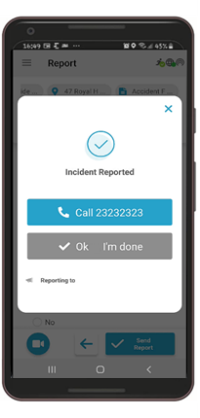
- Tap OK, I’m Done.