1. Introduction
The PTT (Push-to-Talk) channel communication system is an additional feature within the NowForce mobile app. This feature allows you to send and receive voice messages, similar to a walkie-talkie system. This guide explains how to send and receive PTT messages from the NowForce mobile app.
2. Opening the Channel Overview
To open the channel overview, follow the steps below:
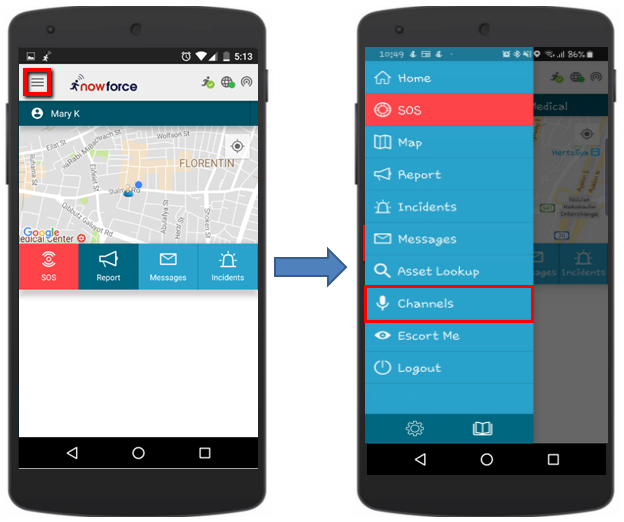
- Tap the Menu icon in the top left corner of the screen.
- Then tap Channels.
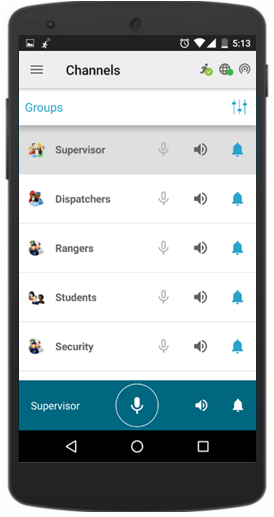
The channel overview opens and shows all group channels you have access to.
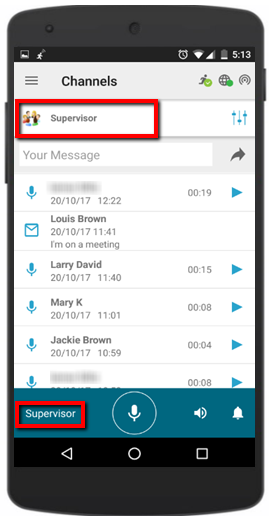
Tap one of the groups to see all voice and text messages in that group. You can listen to the voice messages by tapping the play icon next to a username.
3. Sending a Voice Message
Follow the steps below to send a voice message:
- Tap the Microphone (PTT) icon in the middle of the blue bar at the bottom of the screen and start speaking.
- While sending your message, the Microphone icon turns green and the name of the channel you are sending to also becomes visible.
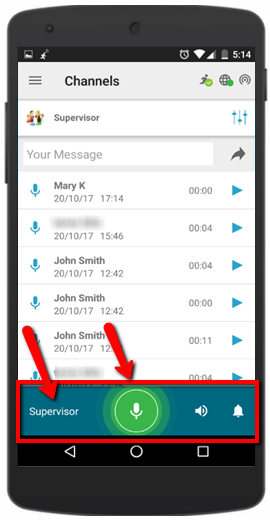
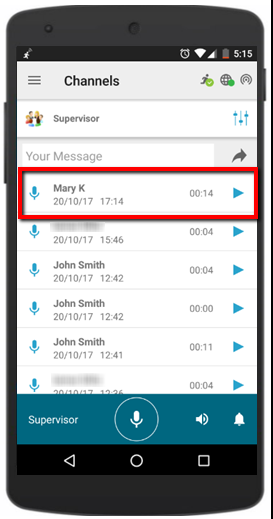
Your message is automatically heard by all members of the group channel who are logged in at that time. Once you finish sending, the voice message is logged on the conversation screen.
4. Sending a Text Message
To send a text message, follow the steps below:
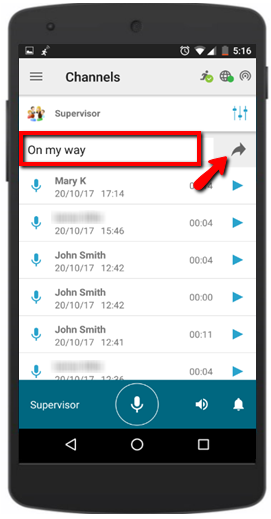
- Type your message in the text box.
- Tap the Enter (Arrow) icon.
5. Receiving an Incoming Voice Message
When other members of the channel send a voice message, it is automatically received and played on your mobile device. At the same time, the
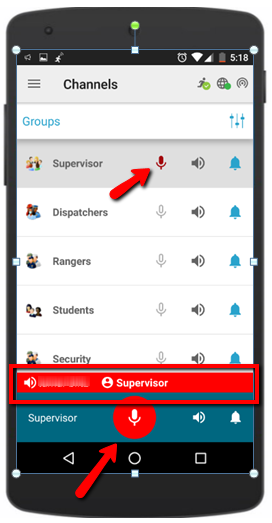
If you want to mute a specific channel, tap the relevant group to enter the channel and then tap the Pause icon. You can replay this message later.
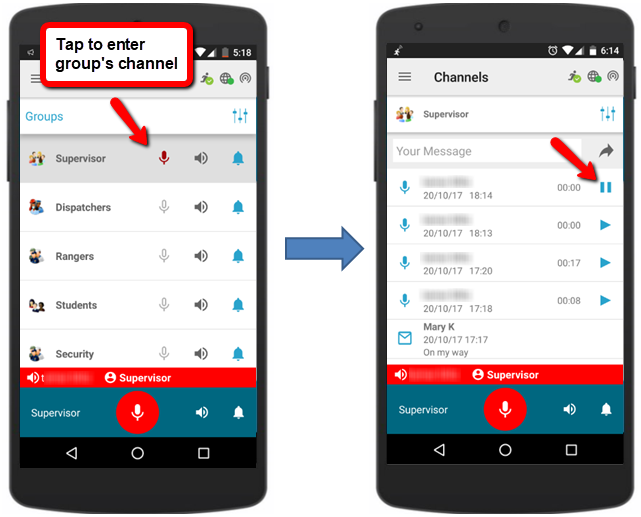
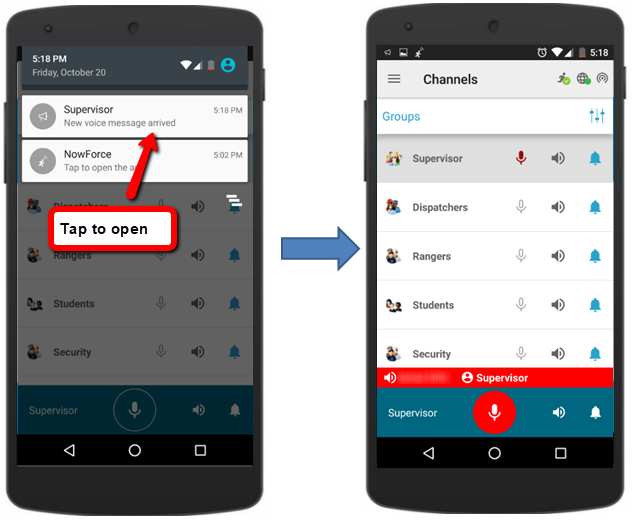
When a member of a channel sends a message, you also receive a text notification. Tap the notification to open the group channel.
6. Receiving a New Text Message
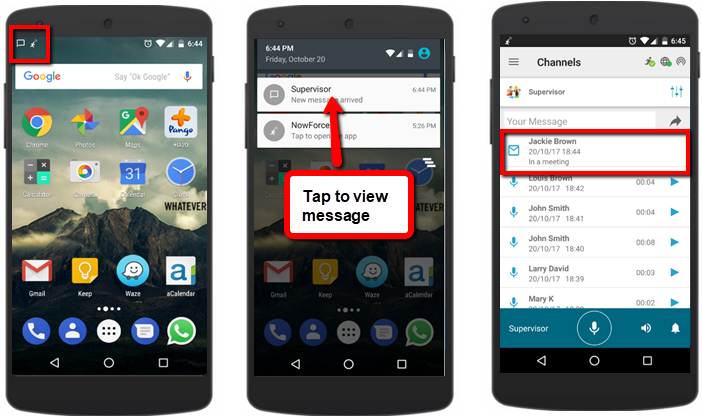
When a member of the group channel sends a text message, all other members receive a sound alert and a text notification with the name of the relevant channel. Tap the notification to open the channel and view the message.
7. Muting Channels
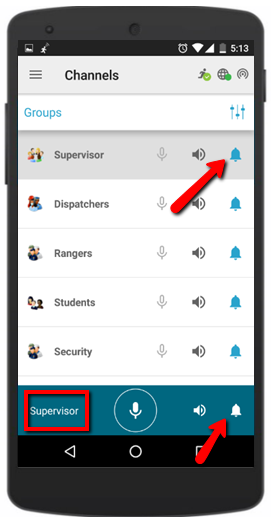
You can mute (or unmute) all channels by tapping the Mute All icon on the Channels screen.
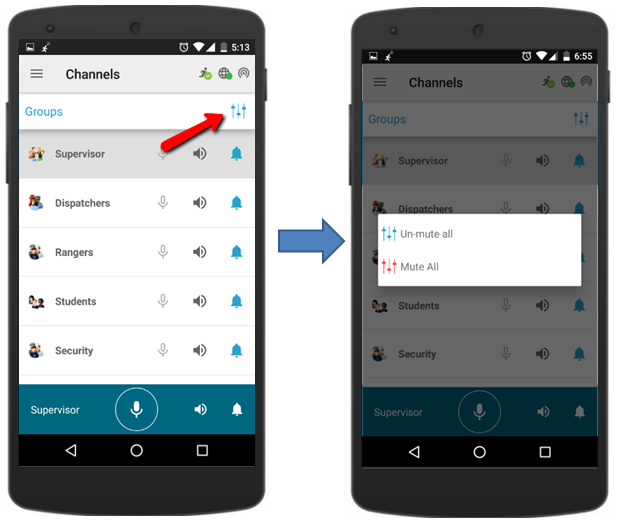
You can also mute selected channels by tapping the Speaker icon on the blue bar or next to the selected channel in the group list. If you mute a group, you will no longer hear voice messages or receive text notifications. You will still receive alerts and text notifications for text messages.
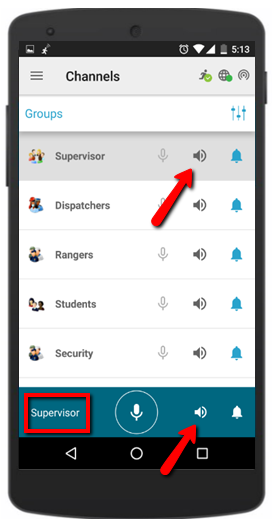
With the bell icon on the blue bar or next to the selected group in the group list, you can also mute the alert for text messages (sound and text notifications).