
Linking Multiple Forms to an Incident Type
Within the system, it is possible to link multiple forms to a specific incident type. Additionally, an administrator can assign a form template that is only available to certain groups. This allows both the dispatcher and responders to select the most appropriate form template and/or duplicate an existing form from the incident’s form selection list. For example:
- Multiple responders can fill out separate forms within the same incident.
- Multiple ‘clients’ within the same incident can each fill out a separate form.
Selecting a Form Template
As a responder, you receive an incident notification on your mobile device. As part of your incident response, you need to complete a form with incident details. The content of this form is automatically sent to the dispatcher who opened the incident.
To select a form template on your mobile device:
- Tap the incident on your mobile device.
- Tap Form.
- Tap the number to the right of the form name to view a list of all available form templates for the incident.
- Select the required form template and fill in the necessary information.
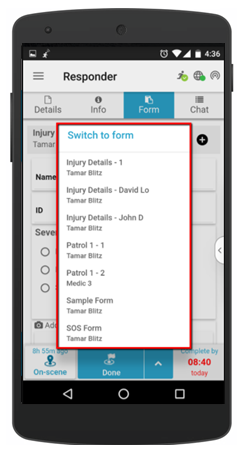
The list of forms only contains forms that you can view and duplicate based on your group and incident type permissions.
Duplicating a Form Template
You can duplicate any of the available form templates.
To duplicate a form template:
- Click the + symbol next to the Select form dropdown list.
- Select a form template from the dropdown list.
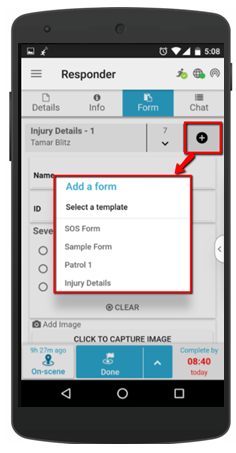
You can only duplicate form templates if you have permission to do so.
Form Template Name
Each new form template includes the template name and the name of its creator (the user who opened the incident or duplicated the form template). If pre-configured by the administrator, the form template name can automatically be modified to include text entered in the Title field on the form.
Required Fields in the Form Template
Form templates can be configured (by the administrator) with required fields.
A red asterisk icon appears next to the name of a form that has required fields. The red asterisk icon also appears next to the required field within the form.
A responder can only report an incident when all required fields in the original form template, as well as any form templates they have created or duplicated, have been completed.