
Logging into the Mobile App
To access the mobile app, you must log in through the home screen of your mobile device. Follow the steps below:
Step 1: Navigate to the Home Screen
On your mobile device’s home screen, you will find the app icon. Tap this icon to open the app.
Step 2: Enter Username and Password
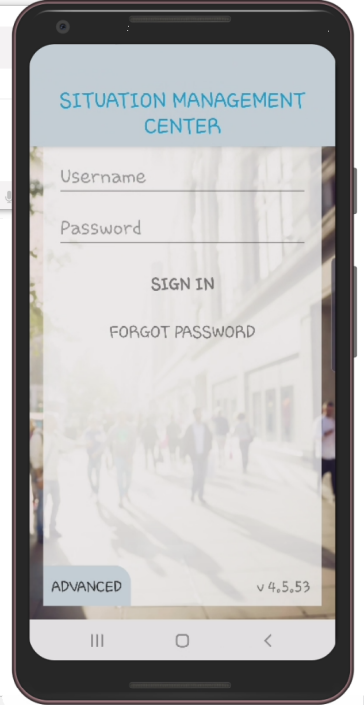
When opening the app, the login screen appears. Enter your username and password, which have been specifically created for you by your organization, in the respective fields.
Step 3: Accept the Terms of Use
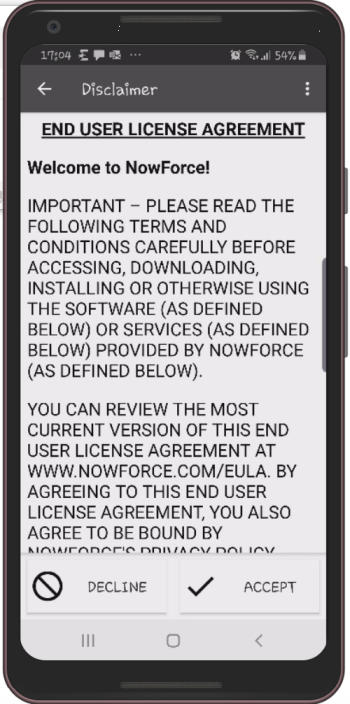
After entering your login credentials, the terms of use screen appears. Read the terms carefully and tap “Accept” to continue.
Step 4: Return to the Home Screen
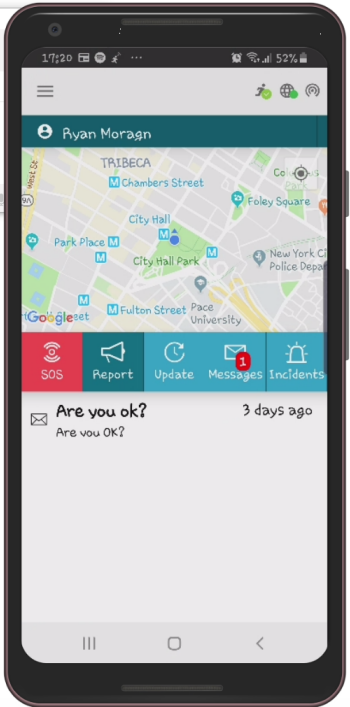
After accepting the terms of use, you will be redirected to the mobile app’s home screen. From here, you have full access to all functions and features of the app.
Logging out of the Mobile App
If you wish to close and log out of the mobile app, follow the steps below:
Step 1: Navigate to the Menu
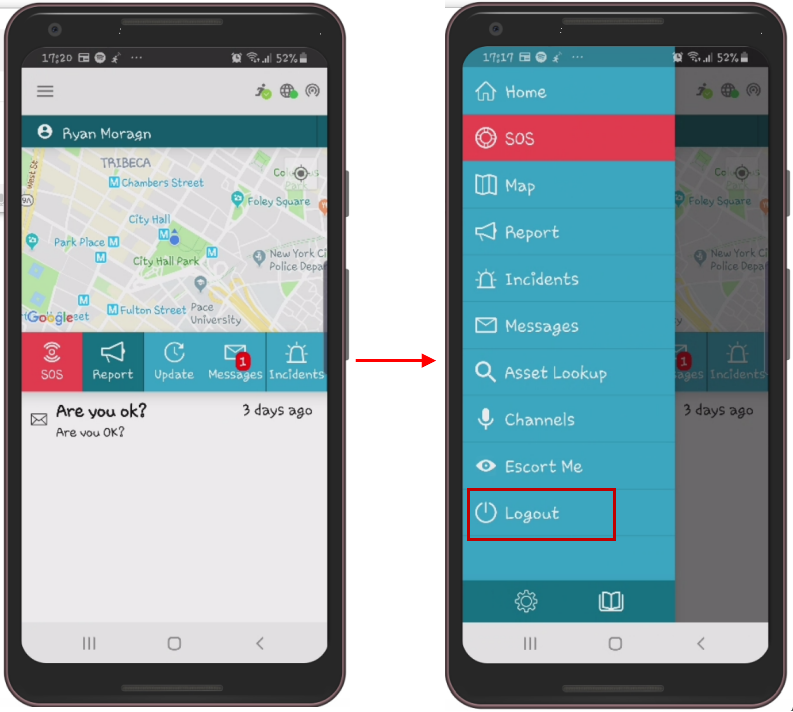
On the home screen, tap the menu icon in the form of three horizontal lines, located in the top left of the screen.

Step 2: Open Settings
At the bottom of the menu, navigate to the settings icon. Tap this icon to open settings.

Step 3: Log Out
In settings, you will find the “Log out” option. Tap this option to log out.
Step 4: Confirm Logout
A notification appears asking if you are sure you want to log out. Tap “OK” to confirm the logout process.
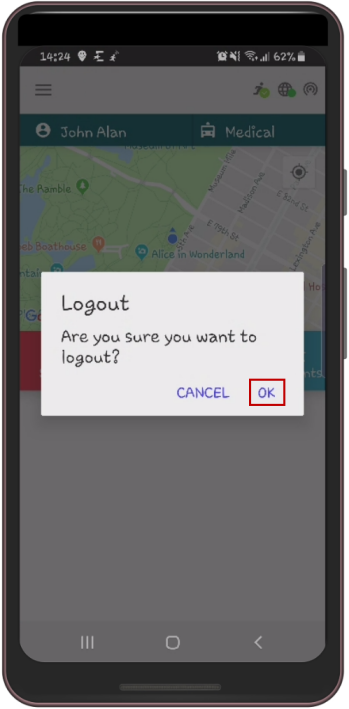
After logging out, you will no longer receive notifications, messages, or other forms of communication from the control center. Additionally, all data from incidents, notifications, or messages that were displayed in the app will be deleted.
Thank you for consulting the online user manual for the mobile app. For further questions or issues, you can always contact our customer service.