
Using the Asset Lookup Function
The Asset Lookup Function allows authorized users to perform the following actions:
- Add a textual log entry to the Asset’s log. The log entry is automatically registered with a timestamp and the user’s current location.
- Create a new incident at the Asset’s location. This action opens the NowForce Reporter module on the mobile device, with the Asset’s location as the reported address.
- Create a new Asset if the Asset search does not yield a relevant result (currently only available for iOS).
- Edit the Asset form.
Here are some examples of situations in which you might want to use the Asset Lookup Function:
- Firefighters arriving at the scene of a fire and wanting to locate all nearby fire hydrants.
- A patrol officer who must check all houses in a specific jurisdiction monthly.
- A security guard who only grants access to pre-registered individuals to a facility.
- A supervisor who wants to collect images from all cameras pointed at a specific location.
To access the Asset Lookup Function:
- Tap the Menu icon (3 lines) in the upper-left corner and select Asset Search.
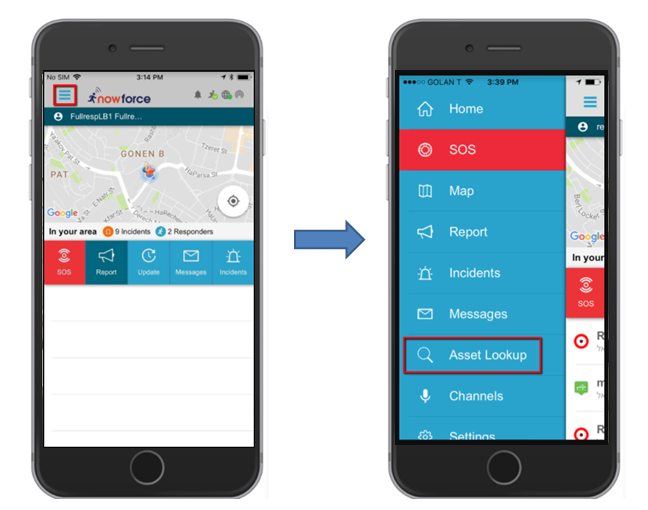
To search for nearby Assets:
- Start typing the name of the Asset.
The relevant Assets that match the characters you entered appear in the dropdown list based on the distance between you and the Asset. The Assets are displayed from closest to farthest.
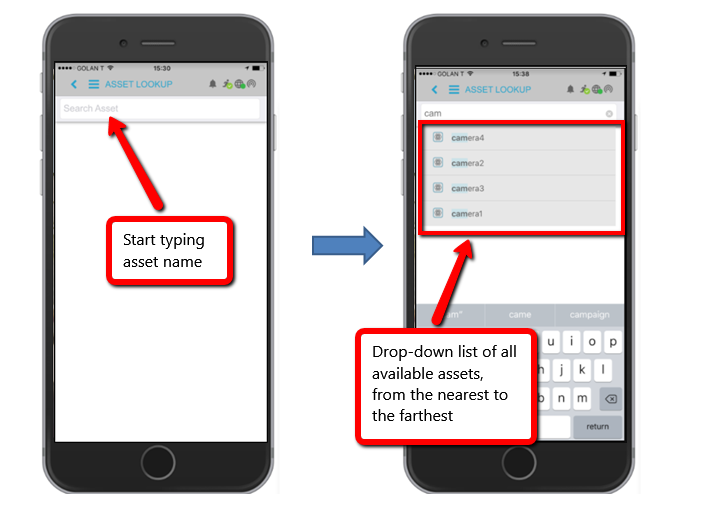
- The Asset Lookup Function also returns results based on searchable fields in the Asset, and not just based on the Asset name.
- In addition to the Asset name, you can see when the Asset was last edited, i.e., the time since the last log entry or incident was created.
- Click on an Asset in the dropdown list to display all the Asset’s details.
Asset Information
The Asset information is displayed in the Details, Form, and Log tabs.
Details Tab
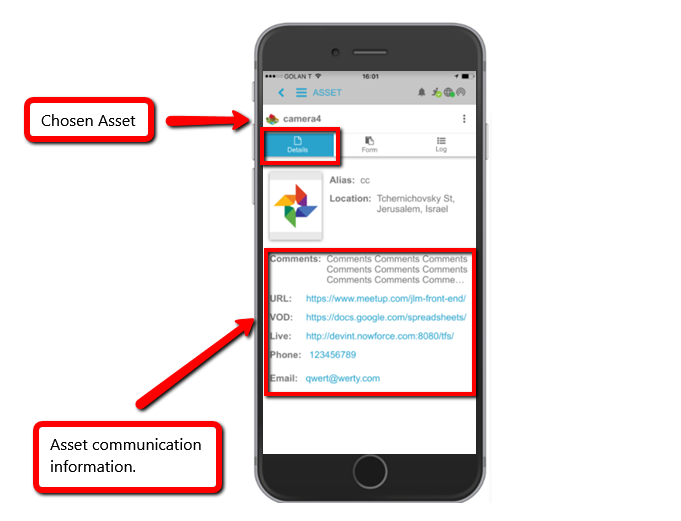
The Details tab shows the following basic Asset information:
- Image
- Alias
- Location
- Comments
You can click on one of the communication links to communicate directly with the Asset. For example, click on the Asset’s phone number to call the Asset’s phone directly; click on the Asset’s email address to send an email; click on the Asset’s URL to access the Asset’s URL/VOD.
Form Tab
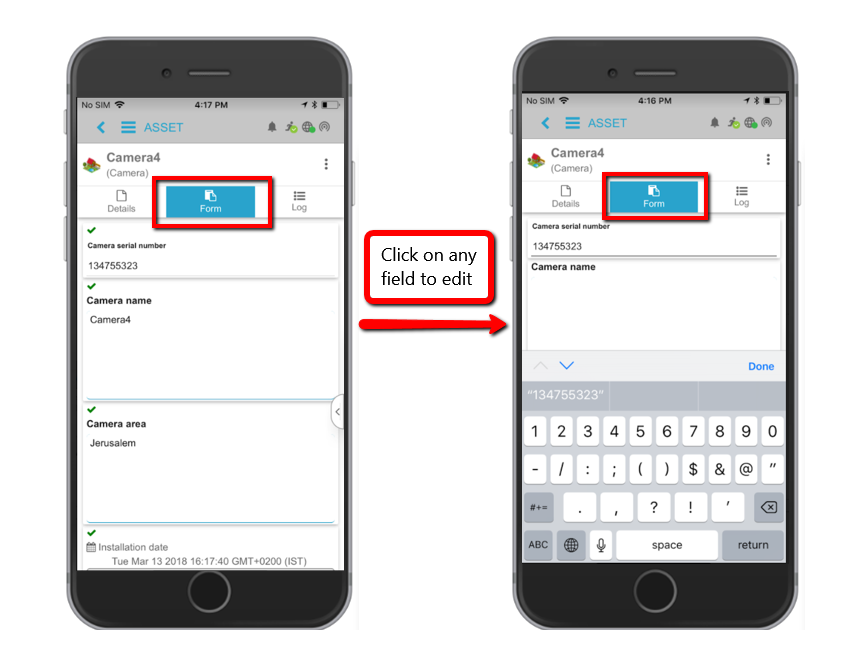
The Form tab shows the form template defined for the Asset. You can view the form data and, if you have the appropriate permissions, also edit it.
Asset Log Tab
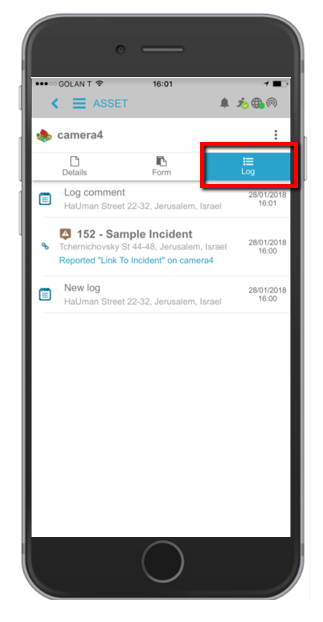
The Log tab shows the Asset’s history and all actions performed on the Asset. For example, log entries, related incidents, sent SMS/email messages, etc.
Creating Incidents and Log Entries
To create a new incident or a new log entry:
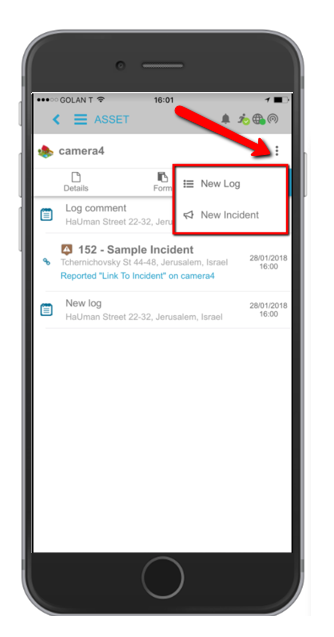
- Click on the vertical ellipsis on the right side of your screen and select new log entry or new incident.
To add a log entry:
- Select New log entry in the ellipsis menu.
- In the Asset Report field, enter the text you want to add to the Asset’s log. The log entry is automatically registered with a timestamp and your current location.
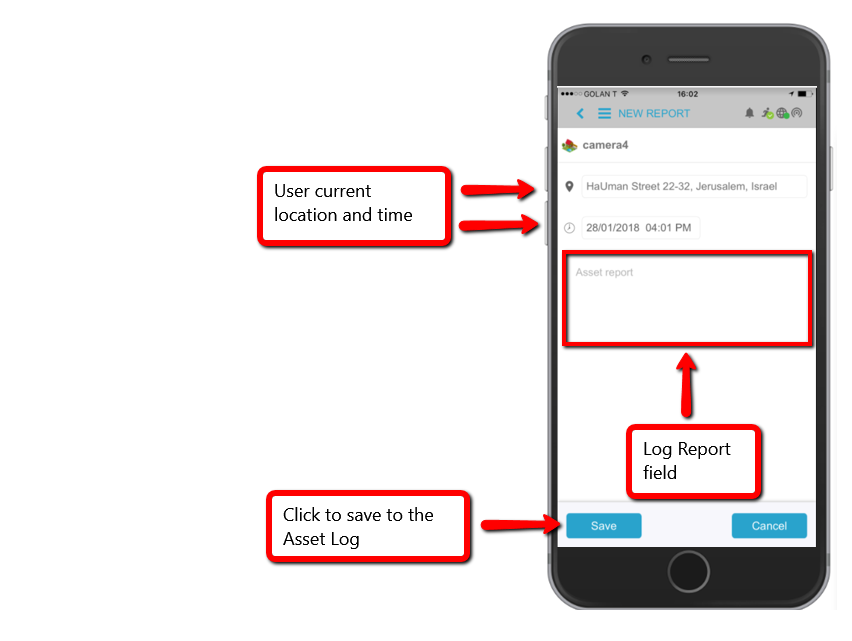
If you have the appropriate permissions, you can edit the location and the date and time fields by clicking on them and entering the new details you want to register.
To create a new incident:
- Select New incident in the ellipsis menu.
The New incident option opens the NowForce Reporter module with the Asset’s location as the reported address, and with the Asset’s name in the Address comment field.
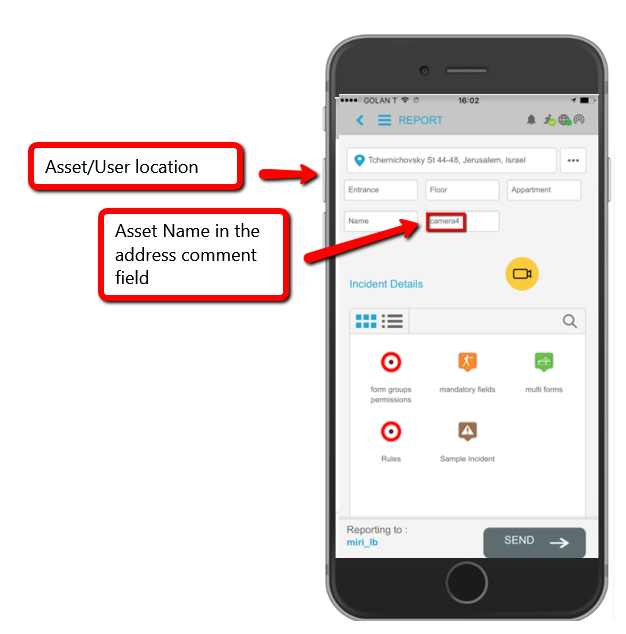
If the Asset does not have a location, your current location is the reported address.
Since you are now reporting an incident, you must choose the desired incident, fill out the form, and tap Submit to report it. The incident you created is now also displayed in the Asset log.
Creating a New Asset
If the Asset search does not yield a result and you have the required permissions, you can create a new Asset.
Note: This feature is currently only available for iOS.
To create a new Asset:
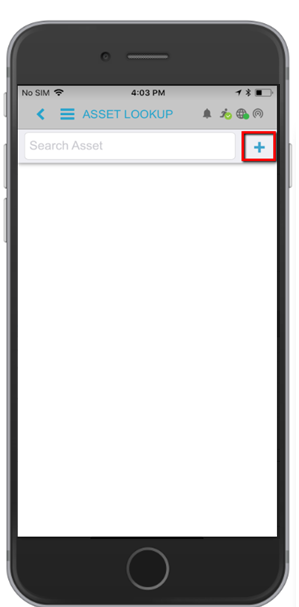
- Tap the + in the Asset Search screen.
- Select the Asset category.
- Select the Asset type and enter the Asset details. The Asset name field is required.
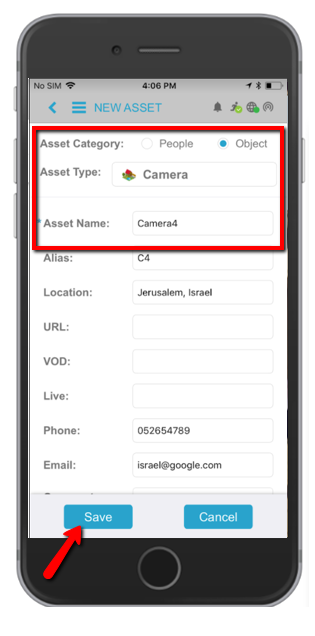
- Tap Save to create the new Asset.