
The online user manual provides detailed instructions on submitting user updates in the mobile app. Below are step-by-step instructions to assist you in submitting these updates.
Accessing the Update Page
To access the Update Page in the mobile app, follow the steps below:
- On the home screen, tap Home.
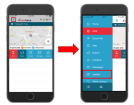
or select Update on the home screen shortcut bar.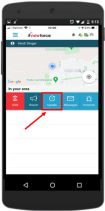
- The Update pop-up will open.
Submitting a User Update
Submitting a user update is straightforward. Follow the steps below:
Selecting a User Update
- Tap the user update you want to select.
- Title and text user updates are sent directly to the dispatch operator upon selection.
- Free text user updates require you to tap the free text box and add your update. Then, tap the send icon (airplane) to submit.
- User updates that contain a form will open the form after you have selected the update.
Submitting a Free Text User Update
Follow the steps below to submit a free text user update:
- In the user update, tap the type of user update you wish to select.
- The user update will open with the free text box.
- Tap inside the free text box to type your message.
- Tap the Send icon (airplane) to submit your update.
- A pop-up message will appear stating “Update successfully submitted”.
Submitting a User Update with a Form
Follow the steps below to submit a user update with a form:
- In the user update, tap the type of user update you wish to select.
- The user update will open with the form.
- Tap the checkboxes.
- Tap Submit to submit your update.
- The message “Update submitted!” will appear on your screen.
- Tap the X symbol to close the message screen.
With this guide, you can now submit user updates via the mobile app. Follow the instructions carefully for successful submission of your updates.