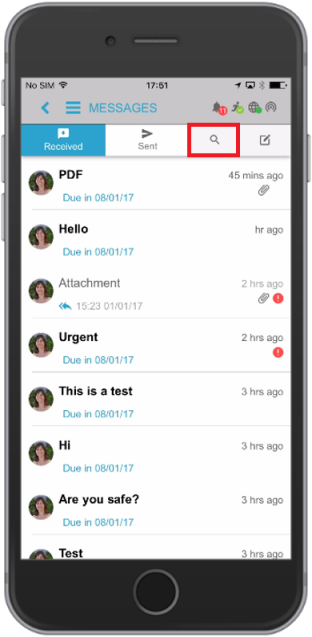
The Message Screen image in your mobile app allows you to view a history of your incoming and outgoing messages and also compose messages from your mobile phone. Message templates are currently only available for iOS devices. We will update this article when this feature becomes available on Android devices.
Accessing the Message Panel
You can access messages on your mobile device through one of the following methods:
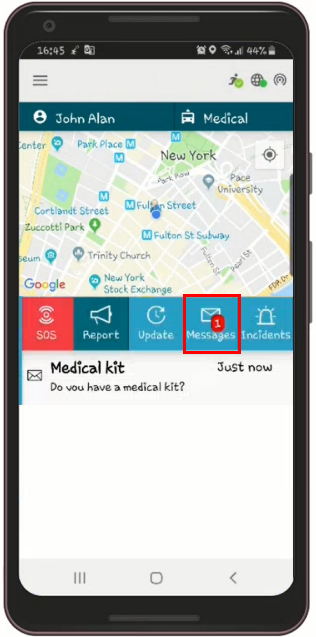
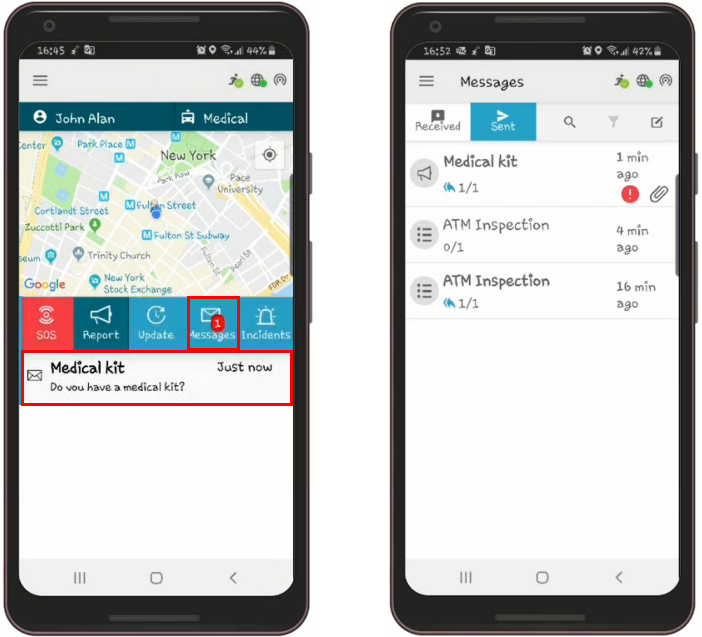
- On the Home screen, tap on Messages. The small red number above the envelope icon indicates the number of unread messages in your inbox.
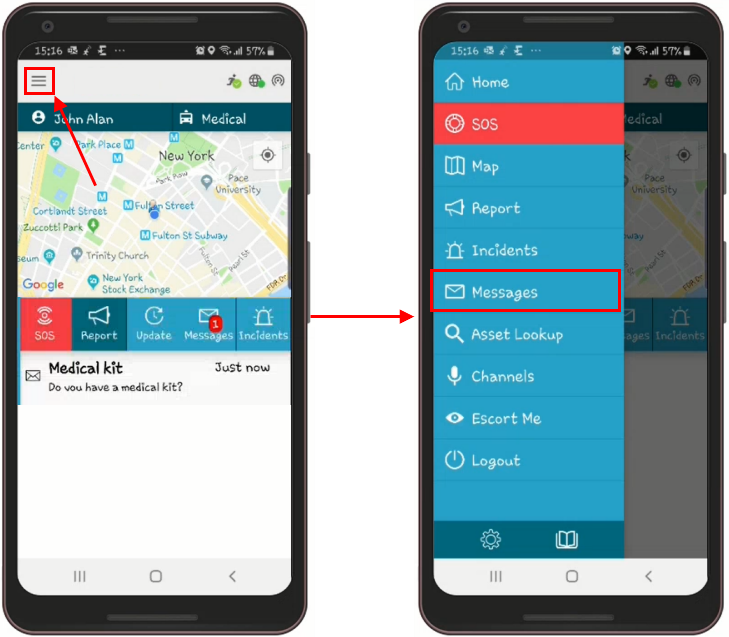
- Tap on the Main Menu on the home screen and tap on Messages.
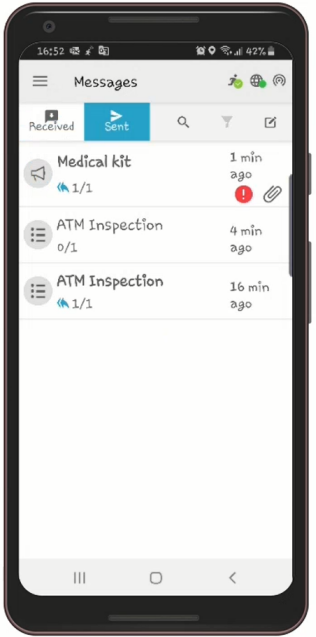
After tapping on Messages using either of the above methods, the Message Screen appears as shown in the following example:
Receiving Messages
You can receive notifications of new messages as follows:
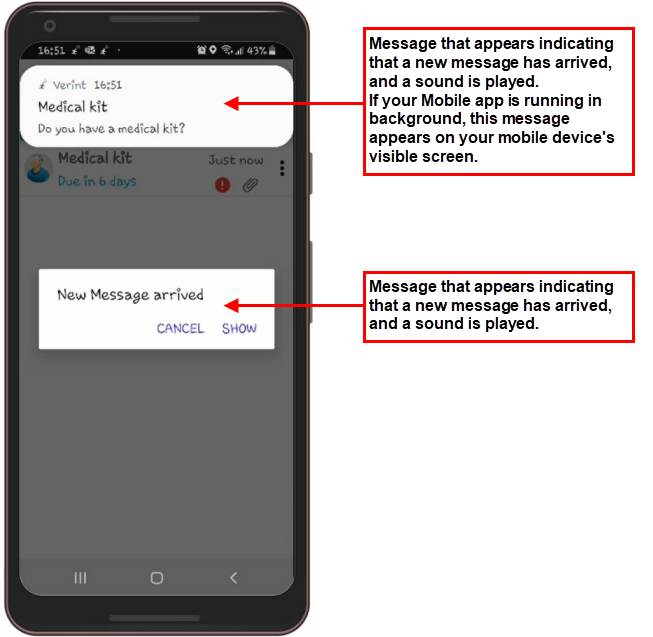
- If the application is running in the background, a pop-up appears on your home screen indicating that a new message has been received, and a sound is played.
- If the application is running in the foreground, a pop-up appears in the app indicating that a new message has been received, and a sound is played.
Your home screen also lists all unread messages. The unread messages remain on the home screen until you view them. After this, they are no longer available on the home screen but can still be accessed via the Message Panel.
Opening Messages with Attachments
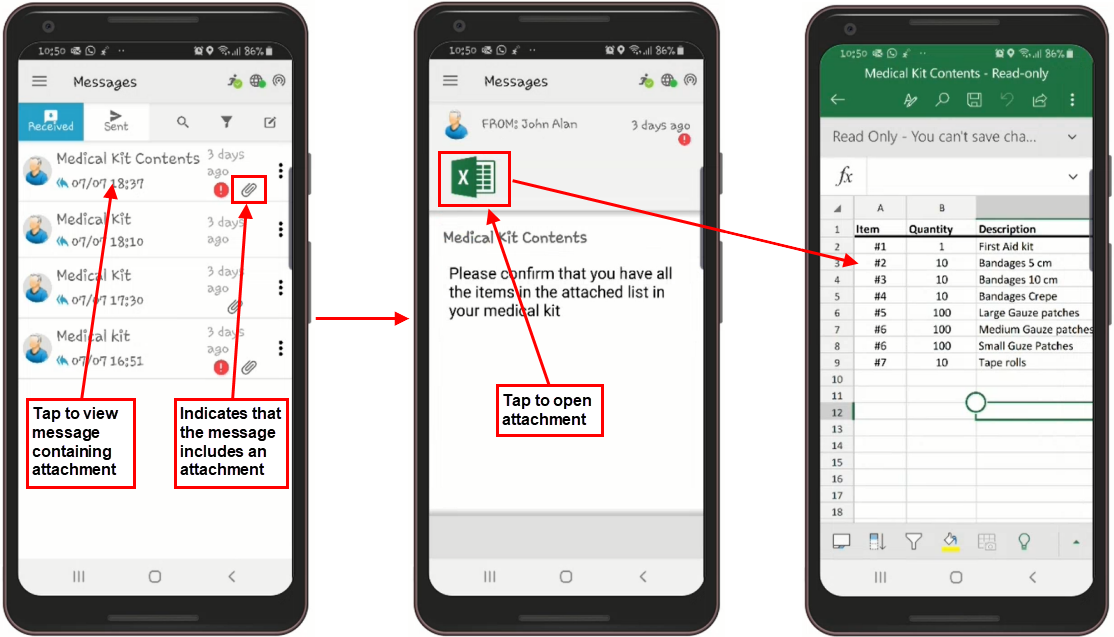
When a message contains an attachment, a paperclip icon is displayed next to the message line. Tap on the message line to view the content of the message. Then tap on the document icon to open the attachment.
Composing Messages
To compose a message:
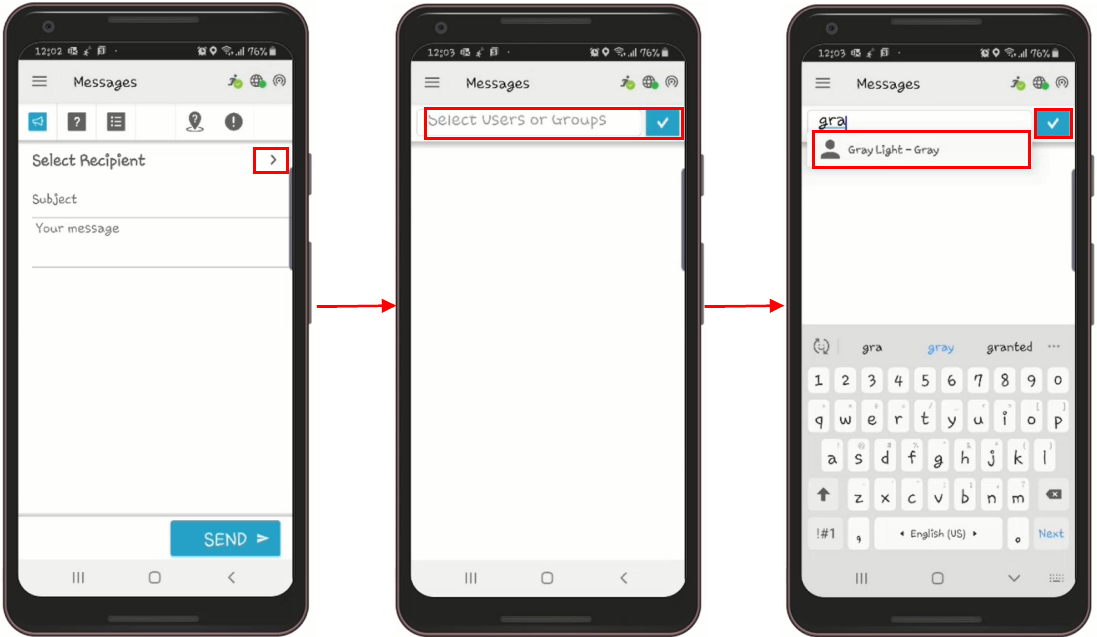
- In the Message Panel, tap on the Compose icon to open the Message Screen where you can compose messages.
- In the Message Screen
- Tap on the arrow to the right of Select Recipient. The Select Users or Groups bar in the Message Screen opens.
- Start typing the characters of the recipient’s name. The auto-complete function shows the available options.
- Select the desired recipient(s) and tap on the blue checkbox icon on the right.
Selecting Message Types
After Selecting the Recipients, Choose one of the Following Message Types:
- Simple Message – Consists of any type of information you want to convey without requiring a response.
- Open Question Message – Allows the recipient to respond to a question in free text.
- Multiple Choice Message – Allows the recipient to choose one of the predefined answers set by the sender.
To Compose a Simple Message:
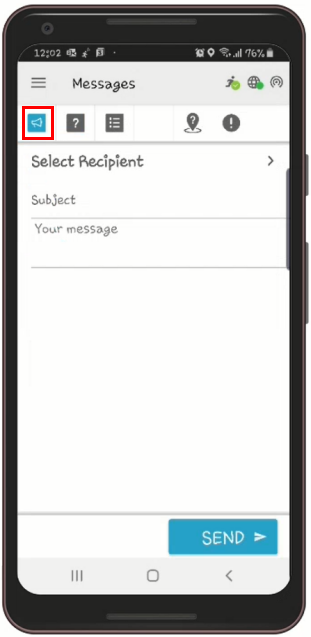
- Tap on the Simple Message icon, which is highlighted in red in the following example.
- Follow the above procedure if you haven’t selected the recipients yet and select them now.
- Enter the Message Subject and Message Text and tap Send to send your message.
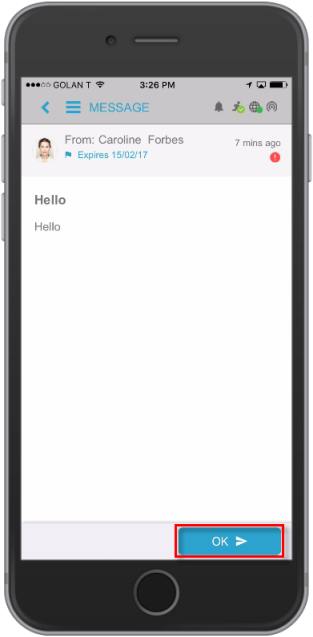
When you receive a Simple Message, you can tap OK to let the sender know that the message has been received. The recipient cannot respond with free text.
To Compose an Open Question Message:
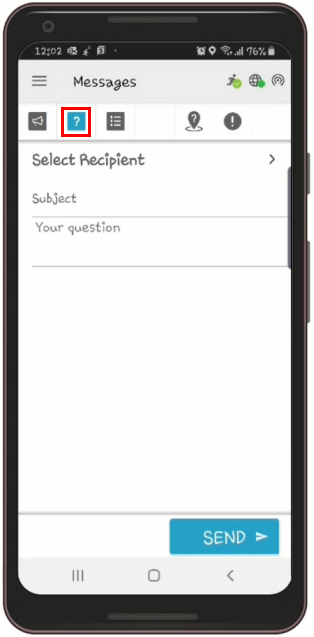
- Tap on the Open Question icon, which is highlighted in red in the following example.
- If you haven’t selected the recipients yet, select them now.
- Enter the Message Subject and Message Text and tap Send to send your message.
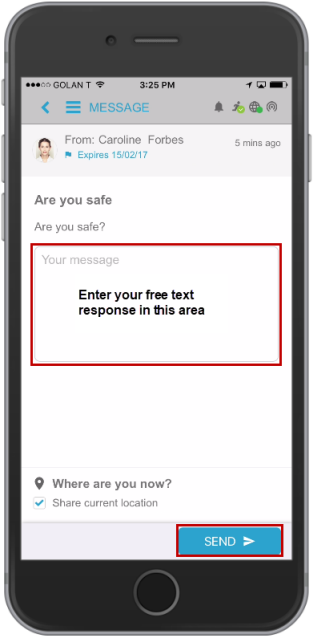
A recipient can enter their response in free text in the Your message box, and then tap Send to send the message to the sender.
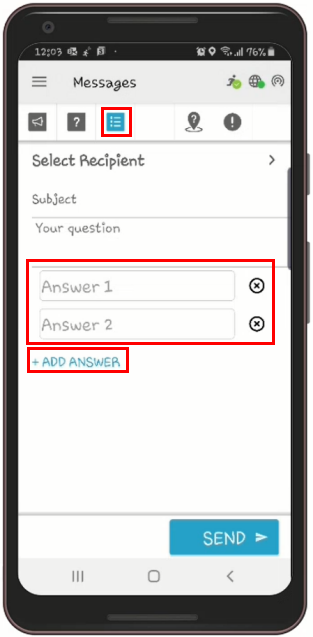
To Compose a Multiple Choice Message:
- Tap on the Multiple Choice Message icon, which is highlighted in red in the following example.
- If you haven’t selected the recipients yet, select them now.
- Enter the Message Subject, the question, and the answers.
- Tap +ADD ANSWER to add additional answers.
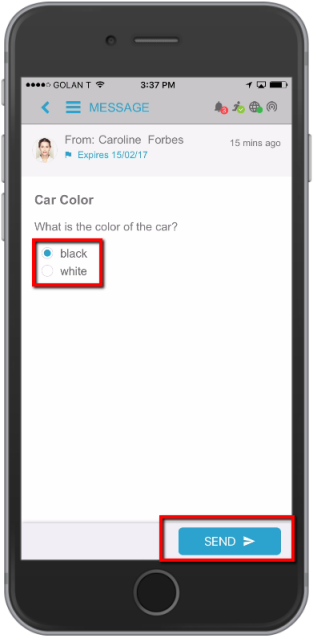
Below is an example of a multiple choice message received by the recipient. The recipient can select their answer and then tap Send to send the message to the sender.
Message Templates
The control room operator can create simple message templates in the Control Room’s Message Panel. Once these templates exist in the Control Room, you can access them via the mobile messaging app and use them to send simple messages.
Templates are currently only available for iOS devices. We will update this article when this feature becomes available on Android devices.
To send a simple message template from your mobile device:
- Tap on the template icon and tap Select Template.
- On the template screen, select the desired template from the list of templates defined in the Control Room.
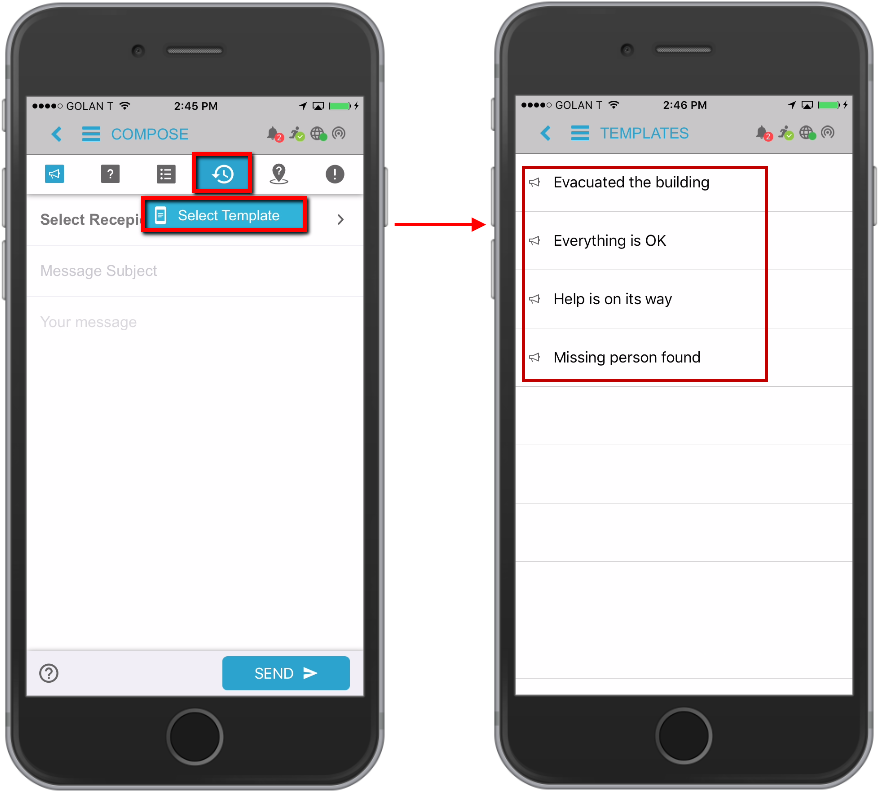
You will only see the templates that have been created in your organization. If you need a template for regular use, contact your organization’s administrator or the control room operator and ask them to create one for you.
- If you haven’t selected the recipients yet, select them now and tap SEND.
The Urgency Button
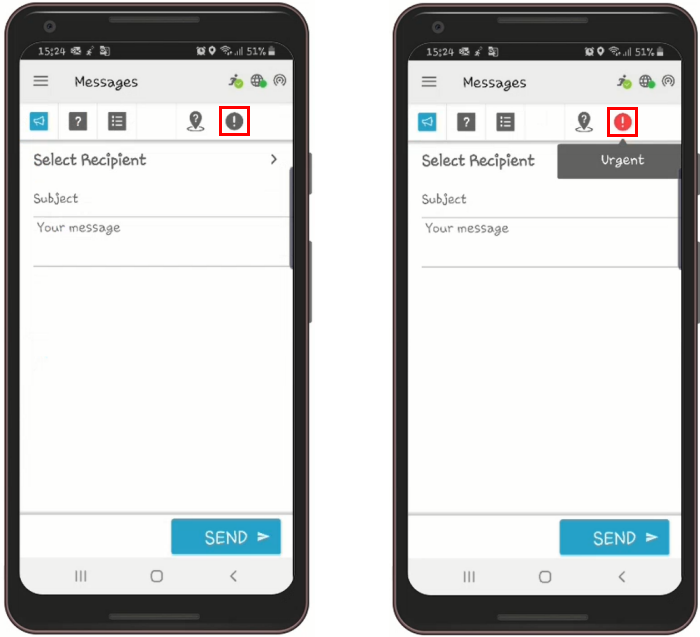
You can choose to send a message as an urgent message by tapping the Urgency icon. The icon turns red. Tap the icon again to return to a standard message.
The Request Location Button
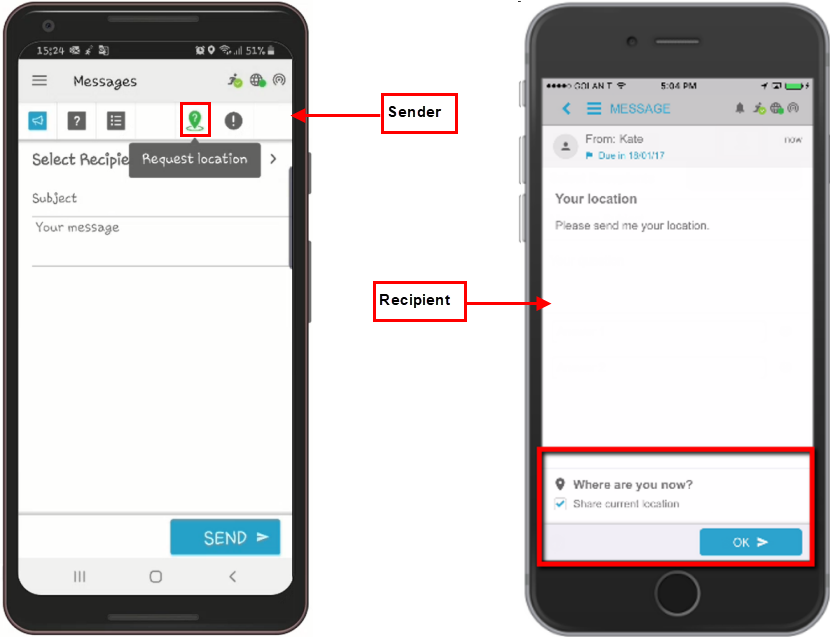
You can request the location of a recipient by tapping the Request Location icon. Green means the location will be requested. Black means the location will not be requested.
When the recipient opens the message, the Share current location checkbox is shown. The recipient can share their location by selecting the box and tapping OK to send it to the sender.
The Help Button
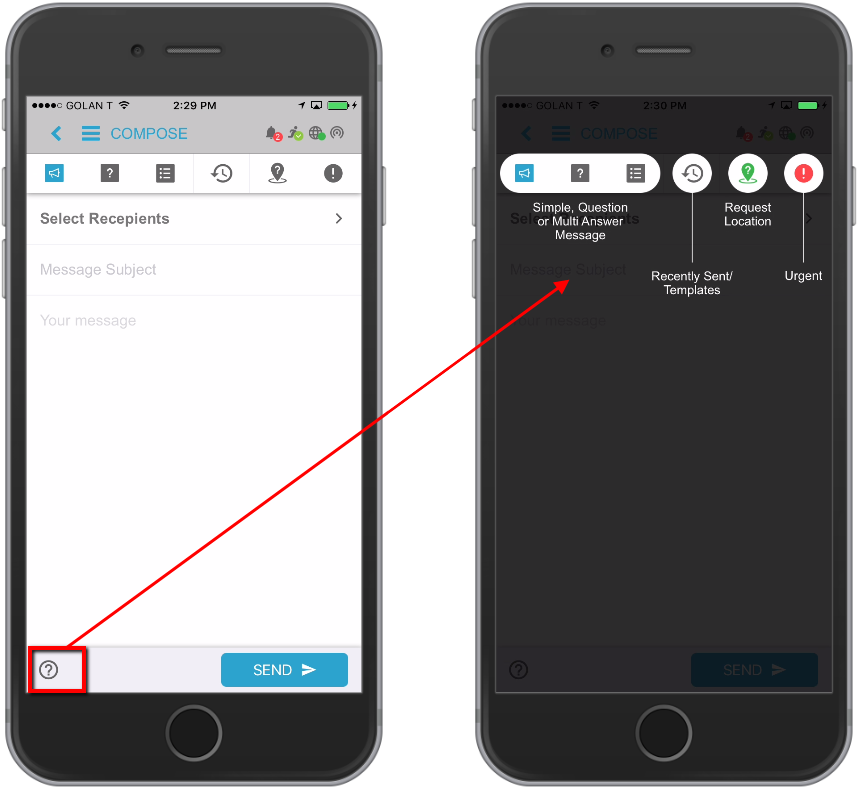
Tap the Help icon, located in the bottom left of the Compose screen, to display a screen showing the functionality of each button on the Compose screen. To exit the Help screen, tap anywhere on the screen to return to the message you were composing.
Sent Messages
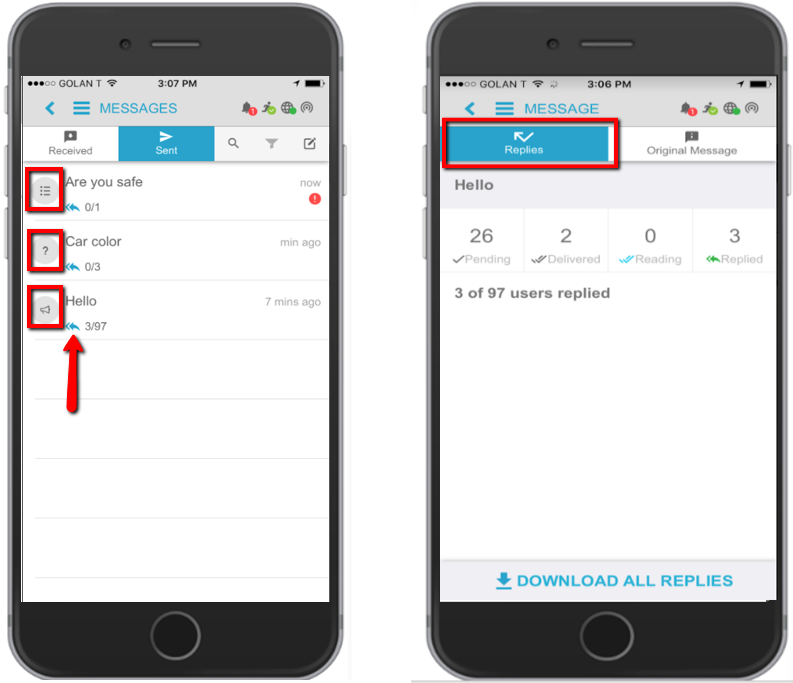
- On the Message Screen, tap Sent to view a list of all your sent messages. The icons on the left indicate the type of message sent. These icons correspond to the various message types described above.
- Tap on a message to view the message statistics in the Reports tab. You can also download all responses to Excel to view specific response information.
Received and Answered Messages
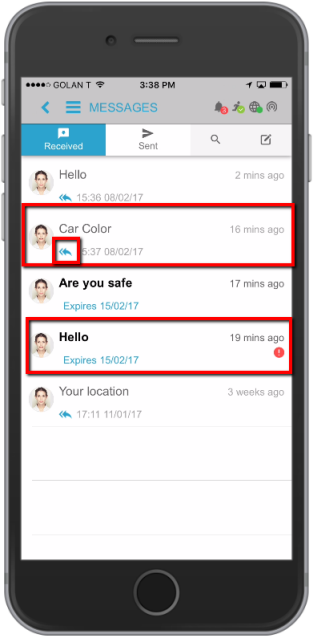
On the Message Screen, tap Received to view details of all your received messages. Messages in bold indicate that you haven’t opened the message yet. Messages with the double blue arrow icon indicate that you have read and responded to the message.
Searching Messages
You can search for messages by tapping the search icon and entering your search criteria.