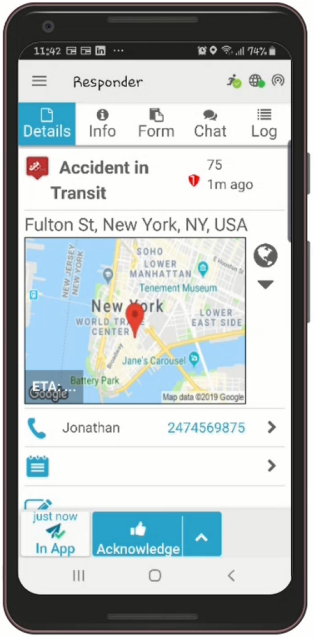
When you are dispatched as a Responder to an incident, the NowForce Mobile App opens on your mobile device with details of the incident.
The Chat and Log tabs allow you to view a history of the chats and events that occur when you are dispatched as a Responder to an incident. The Chat tab records the chat messages that occur between you and the dispatch operator and other Responders for the incident, while the Log tab keeps a record of both the chats and the system events you report after being dispatched to an incident.
The Chat and Log tabs are only available on your mobile device while the incident is open. However, a record of the incident events and chats is still available in the Incident tab of the Dispatcher application.
The following screenshots show examples of a series of events that are recorded when you are dispatched to an incident.
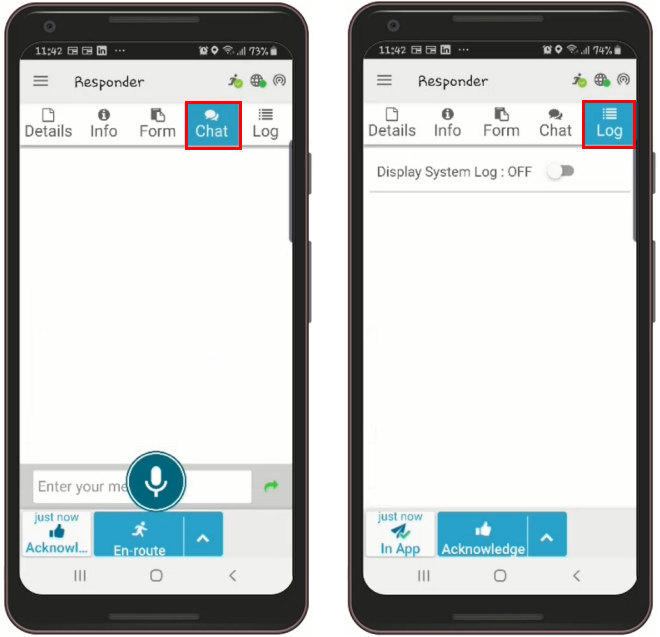
In the app, tap the Chat or Log tab. Initially, these tabs are empty, as shown in the following examples:
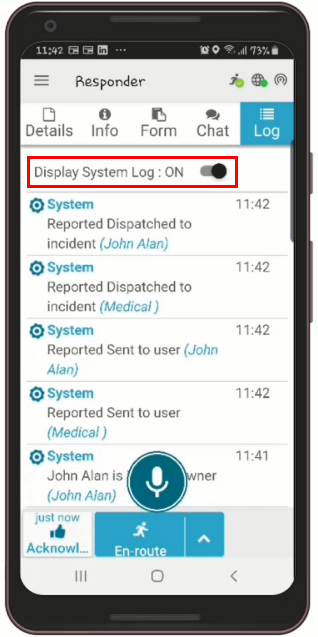
By default, the Log tab does not show system events, which are events automatically recorded by the system, such as dispatching to an incident. Tap the Show System Log switch to view the system events.
Sending Chat Messages
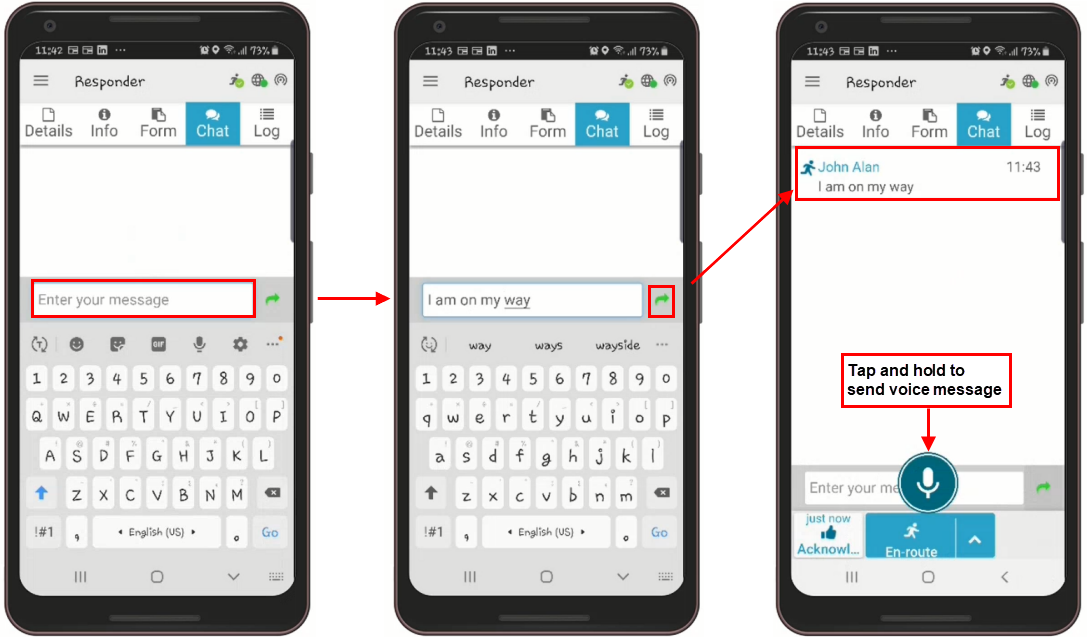
To add a message, tap in the Enter your message box, type your message, and then tap the green arrow to send the message. You can also use the built-in Speech-to-Text feature if your device supports it. The chat message now appears in the Chat tab.
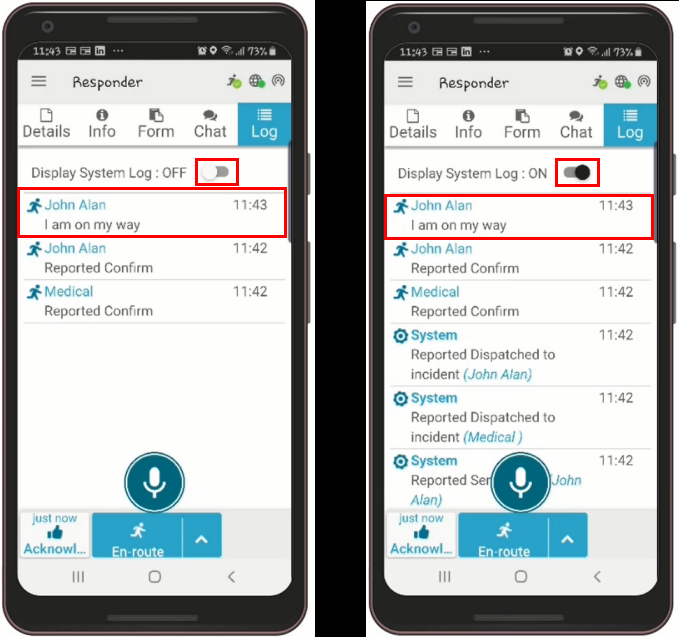
Your message is also added to the Log tab. The following screenshots show the Log tab with the new message. The screenshot on the left shows only chat messages in the Log tab, while the screenshot on the right shows both chat and system messages.