
Introduction
This online user manual contains information about using the mobile app. The purpose of this manual is to help you navigate and utilize the various functions and options within the app.
Using the Main Menu in the Mobile App
The main menu of the mobile app provides access to additional tabs that are not displayed on the home screen. The available menu items depend on access rights. In this article, we show examples of all available menu items. If a menu item is not available in your mobile app and you wish to use this feature, please consult your system administrator.
Accessing the Main Menu
You can open the main menu by tapping the menu icon (three lines) in the top left corner of the mobile app’s home screen.
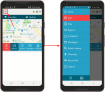
Options in the Main Menu
The main menu offers the following options:
- Home: Returns you to the mobile app’s home screen.
- SOS: Allows you to activate the SOS function. Click here for more information about activating and deactivating the SOS function.
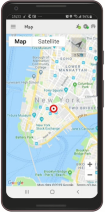
- Map: Allows you to view all active incidents and see the location of other users in your organization.
- Report: Allows you to report an incident. This function is the same as tapping “Report” on the home screen. Read more about reporting an incident here.
- Incidents: Opens the Incidents screen where you can view all incidents assigned to you. This function is the same as tapping “Incidents” on the home screen.
- Messages: Opens the Messages screen where you can view all sent and received messages. This function is the same as tapping “Messages” on the home screen.
- Asset Search: Opens the Asset Search screen where you can search for assets.
- Channels: Opens the Channels screen where you can view all PTT channels you have access to. The screen contains details of all received or sent messages on the PTT channels that you can also play back. Read more about channels here.
- Accompany Me: Allows you to track your activity for a specified time period. If you feel unsafe or are in a hostile environment, you can use this feature to set a time limit based on your activity. When the time limit expires, an SOS alarm is activated, your control room is immediately updated with your current location, and your emergency number is automatically called. Read more about Accompany Me.
- Sign Out: Signs you out of the mobile app. After signing out, you will no longer receive notifications, messages, or other forms of communication from the control room.
- Settings: The settings icon is located in the bottom left of the menu screen and allows you to view and adjust configuration settings.
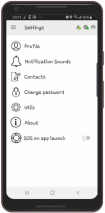
Settings
The settings menu contains the following options:
Profile
Shows your information and settings within the organization.
Notification Sounds
Allows you to set different ringtones for the various types of incident notifications and messages in the mobile app.
Contacts
Allows you to add/edit emergency contact numbers in the mobile app.
Change Password
Allows you to reset your password in the mobile app.
Utilities
Allows you to perform the following configurations:
- Grab Flic Button
- Enable/disable notification icon.
- Tap headphone button to start/stop PTT: Allows you to use your headphone controls with PTT calls.
About
Provides information about the mobile app and also allows you to send a log report and synchronize your mobile app with your current data.
SOS on App Startup
Activates the SOS function when you start the mobile app. Read more about [SOS-on-app-startup](link to article) for more information.
This is the online user manual for using the mobile app. If you have any questions or need assistance, please contact your system administrator.